Does Instagram’s Daily limit block Reels?
No. Instagram’s personal Daily limit reminds you how long you’ve used Instagram. It does not block Reels. Screen Time can block the whole app, while limitd can keep messages available with Reels blocked inside limitd.
Set a Daily limit reminder
Follow Instagram’s Daily limit instructions:
- Open your profile and tap Menu.
- Under How you use Instagram, open Time management.
- Tap Daily limit and choose a time.
- Tap the top-left arrow to go back.
The reminder counts time across Instagram, not just Reels. Choose from the times shown in your app.
Teen Accounts are different: they start with a one-hour daily limit, and a parent or guardian can choose to block Instagram once that limit is reached.
Older advice may call a reminder Take a Break. Use the Daily limit steps above, and check what’s available in your account.
Compare the options
| What you want | What to use | What it does | What stays available |
|---|---|---|---|
| A reminder to stop | Instagram Daily limit | Reminds you after your chosen daily time | Instagram stays usable, unless a parent has set a block |
| Quiet notifications | Instagram Sleep mode | Pauses alerts at chosen times | Most people can still use Instagram and messages |
| A break from the whole app | Screen Time set to block | Blocks opening Instagram | Other allowed apps; Instagram messages are blocked too |
| Messages without the Reels feed | limitd content controls | Blocks chosen parts of Instagram inside limitd | Messages and profiles |
Instagram explains Daily limit and Sleep mode separately. Our Quiet mode and Sleep mode article covers notification settings.
A Screen Time limit can still let you continue
Apple says limits can be ignored by default. For a scheduled block on iOS 26, set a Screen Time passcode and turn on Block at Downtime under Downtime. Apps in Always Allowed are exceptions. Follow Apple’s iOS 26 guide.
On iOS 27, Apple calls the controls Screen Time Schedule and Time Allowances. Use Apple’s current guide for those menus.
Blocking the whole Instagram app also blocks its inbox. Read what Screen Time can block while keeping DMs if messages are the reason you still need Instagram.
Keep messages open with Reels blocked
In limitd, Reels, your feed, Stories, Explore grid and suggested accounts on profiles start blocked. Direct messages, or DMs, and profiles stay available.
Reels shared in DMs starts allowed and has its own setting. Block that too if you want to skip videos friends send.
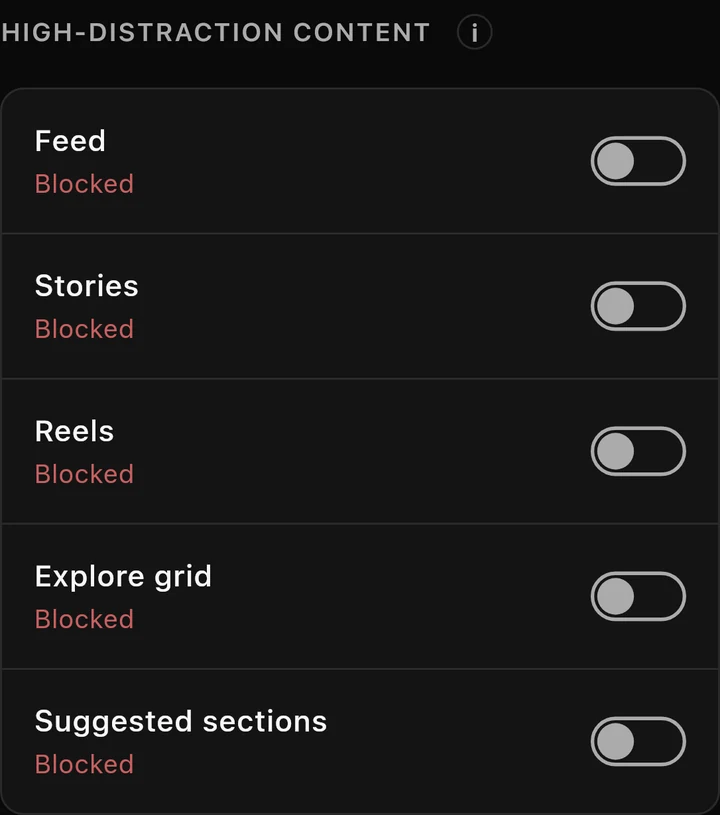
If you want a quick look at blocked content, Focus Points are a daily allowance you spend to open it for a few minutes. It is blocked again when the time ends. Your Focus Level controls how strict this is; stricter levels allow only short unlocks. The Focus Points guide explains the choices.
Try your setup
Reach your chosen limit and check what happens. Do you get a reminder, or does the app stop opening? Then try messages and Reels. Inside limitd, check a Reel sent in a chat separately.
Where limitd fits
Use Daily limit if a reminder is enough. Use limitd if you want to check messages with Reels blocked.
See Instagram without Reels for the setup.
