Keep messages, skip the scroll
limitd blocks Reels, your feed, Stories, Explore and suggested accounts on profiles from the start. Your direct messages (DMs), search and profiles keep working. You can choose what stays blocked, separately for each account.
limitd is on iPhone today. Android coming soon.
Find your account’s controls
Open a saved account, then tap Settings in the bottom bar. These settings belong to that account. App settings, on the home screen, is for choices that apply across limitd.
You’ll see two groups:
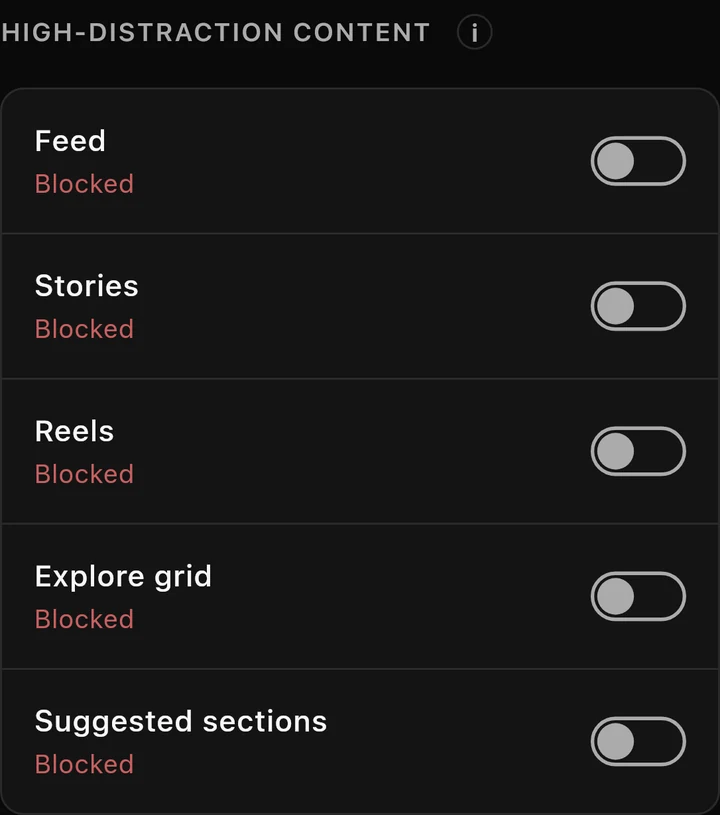
- High-distraction content contains Reels, your feed, Stories, Explore and profile suggestions. These start blocked. You can spend points to open them for a few minutes.
- Intentional content contains posts, profile grids and Reels or posts sent in chats. These start allowed. You can block them until you choose to turn them back on.
What each setting means
These are the settings for a new account. An account you’ve used before keeps your saved choices.
| Setting | Starts as | What it means |
|---|---|---|
| Feed | Blocked | Posts in your Home feed are hidden. |
| Stories | Blocked | Hides the rows of Stories and places to open them in Feed, Search, profiles and DMs. |
| Reels | Blocked | Blocks the Reels scroll and hides its tab. Reels sent in chats have their own setting below. |
| Explore grid | Blocked | Hides the grid of photos and videos on Search. You can still search. |
| Suggested sections | Blocked | Hides “Suggested for you” on profiles. |
| Profile post grids | Allowed | Shows the grid of posts on a profile. |
| Individual posts | Allowed | Lets you open a post from a profile or link. |
| Reels shared in DMs | Allowed | Lets you watch a Reel someone sends in a chat. |
| Posts shared in DMs | Allowed | Lets you open a post someone sends in a chat. |

Blocking your feed doesn’t block individual posts. Blocking the Reels scroll doesn’t block Reels sent in chats. Use their separate switches if you want those blocked too.
Open something for a few minutes
Focus Points are a daily allowance you spend to open something that’s blocked. Your Focus Level sets how many points you get and how long you can unlock it for.
- In Settings, find High-distraction content and tap a blocked switch, such as Reels.
- Read the cost and the points you’d have left after spending them.
- Choose Open for 5 minutes, or Open for 15 minutes if your level allows it and you have enough points. Keep blocked cancels without spending points.
- The setting shows Unblocked and a countdown. Turn it off to block it again early.

When the timer ends, that content is blocked again. You can keep using your messages, search and profiles.
Locked In and Monk Mode are the two strictest Focus Levels. They only allow five-minute unlocks. Monk Mode also keeps Reels and Explore blocked, except during an emergency unlock.
Read how Focus Points work for costs and levels. All your accounts share one points allowance.
For the four switches under Intentional content, just choose allowed or blocked. They don’t use points or start a timer.
Use the emergency unlock
An emergency unlock opens Reels, your feed, Stories, Explore and profile suggestions across your saved accounts for five minutes. You can use it once a day without spending points. It leaves posts, profile grids and Reels and posts sent in chats blocked if you’ve chosen to block them.
Open Focus, the screen where you manage points, from the home screen. Tap the emergency-unlock button, read the confirmation and choose Use emergency unlock.
Choose how your account opens
In the account’s Settings, find Starting tab. Open on lets you choose where Instagram opens. New accounts start on DMs; existing accounts keep their saved choice.
The bottom bar has Feed, Search, DMs, Profile and Settings to start with. Reels appears only while it’s unblocked. Under Tabs, you can choose which tabs to show. Hiding a tab doesn’t block its content.

You can also change:
- Show tab labels: puts names under the icons.
- Swipe between tabs: lets you swipe left or right to switch tabs.
- Open in fullscreen: hides the bottom bar when you open the account.
- Show floating button: adds a movable button for fullscreen and quick actions.
- Keep in portrait: stops the screen rotating.
If something looks wrong
If blocked content appears, contact support and tell us what you opened.
For setup ideas, see Instagram without Reels or Instagram DMs without the feed.
